Re: The Photo Manipulation and Creation Thread
 What?
What?
 Bricks in Motion
We are a friendly filmmaking community devoted to the art of stop-motion animation using LEGO® and similar construction toys. Here, you can share your work, join our community of other brickfilmers, and participate in periodic animation contests!
A place to discuss, share, and create stop motion films.

You are not logged in. Please login or register.

What?
LegoDudez, he edited his post.
Here is something that we made on Photoshop. We were experimenting with a lot of techniques, and overall we think it turned out pretty well. Everything was made by us (except the tanks). The explosion and backround were probably the hardest to make.

Oh, and for all those who want to know, the alien tank is a Google Sketchup Model (not made by us).
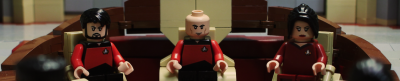
O_o Wow, that's really cool. I am really liking the logo for it.
-JK
Thanks! We had to give several tries before we were able to get the right effect.

If you said this is creepy, I agree.

The Process.
Do I have to use a quote?
It would be like this:
"What an incredible innovation!"
-Techsmith Magazine
*WARNING LARGE FILE.*]
Entery
No Quote

Quote

Everything done by me. No pictures from the internet, the Logo was done by taking a picture of it from my Keyboard and then filling that in, the picture taken in my room then edited later. Here is the PSD if anybody wants it (Just make the Quote invisible by clicking the  icon).
Last edited by zerowellies (July 1, 2010 (07:49am))
Very well done.
Ok, I made a tutorial just for the heck of it. It's kind of a beginner tutorial though.
How To Make Glowing Objects In GIMP
In this tutorial, I'm going to use a random picture I found off of the interent of a lightsaber. We are going to make the lightsaber glow.

So first, you need to mask out your glowing object with white. Create a new layer. Name it 'White'. Just use the paths tool or the free select tool to make your selection; Then fill it in.

Next, create a new layer. Name it 'glow'. Right click on the layer named 'white'. Click 'alpha to selection'. That should select the white. Go back to the 'glow' layer. Find a color that you want your glow to be. Take the fill tool and fill the selection with that color. Your lightsaber should now be that color, and the white should not be showing, because it is behind it.

Move the 'glow' layer behind the 'white' layer, so that the white is showing, not the color. Make sure you are still on the 'glow' layer, and then go to the top of your screen and select Filters>Blur>Gaussian Blur. Blur the 'glow' layer by whatever you want. I'm blurring it mine by 35. Once it is blurred, duplicate the 'glow' layer for more depth. I put the duplicated layer on Grain Merge, but you don't have to do that if you don't want. Also, on the 'white' layer, go Filters>Blur>Blur. That's so the white isn't so sharp.

Now we want to add some glow to the objects around the lightsaber. Create a new layer and name it 'environment'. (I hope I spelled that right.) Now use the free select tool to select a an area on an object near by. Fill the selection with the same color you used to make the glow. Gaussian blur that by whatever. I blurred it by 65. Set the 'environment' layer on whatever you think looks best. I set it on 'screen' because it just looked best on that. Add a few finishing touches, and you should have a pretty good looking picture.

Just made this.

It's just a rough design but I like how it came out.

At least one review quote from a critic or customer
I don't get this.
EDIT: nvm.
Also, how do you do a feather mask?
Last edited by Interbrick (July 2, 2010 (03:28pm))

@Yoder I would like a tutorial on how you made your sig. I'm not the most experienced at GIMP.
@ Michael: To feather a mask, duplicate the mask, Gaussian Blur it, and then erase some details you want with the fuzzy eraser.
Oh, thanks.
JP, all I did was get a picture of some space minifigures, and just used the blur tool to make em' fade out.
EDIT: anyone else want me to make a certain gimp tutorial for em'?
Last edited by eoh49 (July 2, 2010 (07:11pm))
Oh! THAT'S HOW YOU DID IT. 

How do you manipulate flames?

Not sure what you mean by that, liljj. If you could give an example, I'm sure I (or someone else) could help. 
Posts [ 561 to 580 of 1,030 ]