Re: The Photo Manipulation and Creation Thread
Real Brick wrote:
is that a contest entry?
It wasn't, but if you think it fits the theme, but I don't remember where my stock came from though
 Bricks in Motion
We are a friendly filmmaking community devoted to the art of stop-motion animation using LEGO® and similar construction toys. Here, you can share your work, join our community of other brickfilmers, and participate in periodic animation contests!
A place to discuss, share, and create stop motion films.

You are not logged in. Please login or register.

is that a contest entry?
It wasn't, but if you think it fits the theme, but I don't remember where my stock came from though

How do make Yoda the font????


^ 
Wut markus?

I made this in GIMP 
It took me a about 2 hours and its the first thing I've made in GIMP only using brushes and other tools. I didn't import anything. I am very proud of it actually. Also before you start flaming me, its to celebrate the world cup, its not just a random patriotic signature.
Last edited by TDogg186 (May 31, 2010 (04:07pm))
No, actually it's not bad. Very good for your first pic/sig.
Thanks

It is very good. And thank you for the explanation, you just saved yourself!  Now I've got to make one for France. . . . .
Oh, and by the way, you might want to change the height of it to 100 pixels, you'll get mod edited otherwise.
I really enjoyed making it actually. I think I shall make another sport related one. Any suggestions?
And the dimensions are W350 H100 (just in case a mod tries to remove it).
anyone like meh new sig  ?
?

Great, I still like your old one but I stole it. 

Is it like the cut tool in PS?
Last edited by zerowellies (June 1, 2010 (12:24am))
It seems like an alternative to using the guidelines in photoshop to crop individual elements out.
I tried doing that individual icon link thing in my signature ages ago, like when I Love Brickfilming started up, but there were gaps between all the images so it didn't line up properly, and I gave up on it after that. Now every other person has a bloody one of those link thing sigs.

The Gimp Challenge Winners will be announced later today.

id you make this in gimp??? how???
Here is the graffiti tutorial. I originally learned this technique from this video by GimpKnowHow. I have just added a few tweeks, and turned it into a written form.
Difficulty: ★★ (Out of 5; 5 stars being very hard and 1 being very easy for future reference.)
What you will need:
1. Gimp- It's a free photo editing program that can be downloaded at the Gimp website.
2. Brick Background-CGTextures is a good site that has lots of high resolution textures, and only requires a free registration.
3. Splatter brushes- this set of paint brushes can be downloaded here.
4. Script-Fu (Bevel & Emboss)- This is required to make a 3-dimensional effect; download it here.
5. Graffiti Font- The font I'll be using is Writer's Original, but you can find other good ones here.
Let's get started!
First, open your brick texture in Gimp. This can be done either by right-clicking the image and selecting "Edit with Gimp" or opening Gimp, selecting the image, and then pressing "Open." Then resize and/or crop the image to size you want.
Next, create you text by selecting the text tool (T). You can either make the text uniform, or create a new layer for every layer, position, and resize each letter to give it that graffiti look. Once you done, click the visibility icon (
) and then right-click on any text layer and select "Merge Visible Layers." Then move you text to wherever you want and then right-click and select "Layer to Image Size." Make the brick background visible again.
--------------------------------------------------------------------------------------------------------------------------------------------------------------------
Optional:
You can apply and extra underline or accent mark by using the paths tool (F), hitting enter to convert is to a selection, and then filling it with black. Merge this down to the text layer.
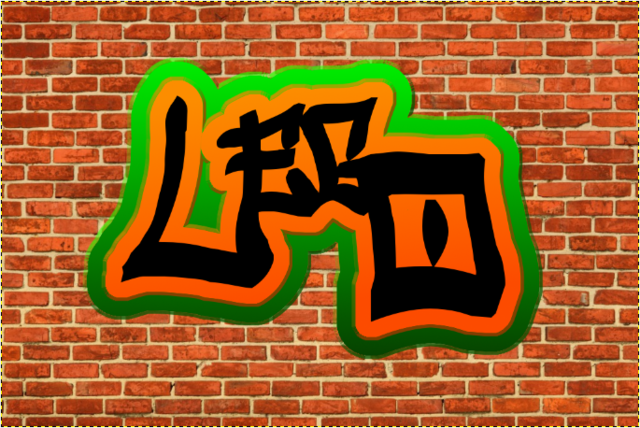
--------------------------------------------------------------------------------------------------------------------------------------------------------------------Right-click on the text layer, select "Alpha to Selection," and create a new layer. Grow the selection (Selection->Grow...) by, in my case, 55 pixels. Select two colors: one a lighter shade of the other. Your color swatch should now look like this:
Select your gradient tool (L) and stroke downward. Then select none (Ctrl+Shift+A). After you have done that, go up to Script-Fu->Layer Effects->Bevel and Emboss. Again select the the lighter and darker shades of your color and set the depth to 7. Click OK. New layers will be created. Right-click each new layer and select "Merge Down." Repeat this step, only with a different, contrasting color and don't grow the selection as much. Then merge the two outline layers. The end result should look like this:
--------------------------------------------------------------------------------------------------------------------------------------------------------------------
Optional:
Right-click the text layer and select "Alpha to Selection." then select the outline layer and click Edit->Cut (Ctrl+X). Duplicate the layer (Right-click->Duplicate Layer).With the top outline layer selected, click Filters->Edge-Detect->Neon. Turn the Amount down to 0 and the Radium up to to around 50. Click OK. Set the layer mode to "Overlay" and turn the opacity down to your liking. This gives it more of a painted look.
--------------------------------------------------------------------------------------------------------------------------------------------------------------------Now it's time to make it look like it's really spray-painted onto the wall. First, select the text layer, "Alpha to Selection," take two shades of grey, and apply the gradient onto the text layer. Select none. Go up to Filter->Map->Bump Map. Select the brick layer as the bump map, turn the Azimuth down to 0, and make sure the X and Y offset are set to 0 as well. Leave everything else at default. Do this step three times to the text layer and lower outline layer, not the edge-detected one if you did the optional step. Now all we have to do is add splatter!
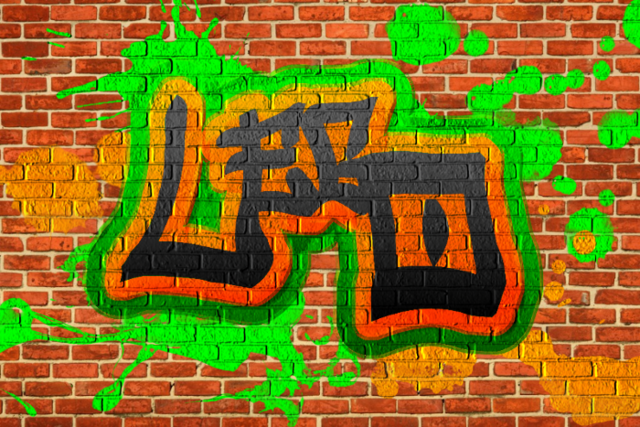
Create a new transparent layer under everything but the brick background. Use your outline colors as you brush on splatter, but make sure to not use the same brush twice. Once done, you can apply the edge-detect effect if you want to. Then apply the bump map to that layer. You're done! Here is the finished result:
If something isn't working, tell me and I will look into it. Then I'll edit this tutorial. Happy Gimping!



did you make this in gimp??? how???
Here is the graffiti tutorial. I originally learned this technique from this video by GimpKnowHow. I have just added a few tweeks, and turned it into a written form.
Difficulty: ★★ (Out of 5; 5 stars being very hard and 1 being very easy for future reference.)
What you will need:
1. Gimp- It's a free photo editing program that can be downloaded at the Gimp website.
2. Brick Background-CGTextures is a good site that has lots of high resolution textures, and only requires a free registration.
3. Splatter brushes- this set of paint brushes can be downloaded here.
4. Script-Fu (Bevel & Emboss)- This is required to make a 3-dimensional effect; download it here.
5. Graffiti Font- The font I'll be using is Writer's Original, but you can find other good ones here.
Let's get started!
First, open your brick texture in Gimp. This can be done either by right-clicking the image and selecting "Edit with Gimp" or opening Gimp, selecting the image, and then pressing "Open." Then resize and/or crop the image to size you want.
Next, create you text by selecting the text tool (T). You can either make the text uniform, or create a new layer for every layer, position, and resize each letter to give it that graffiti look. Once you done, click the visibility icon (
--------------------------------------------------------------------------------------------------------------------------------------------------------------------
Optional:
You can apply and extra underline or accent mark by using the paths tool (F), hitting enter to convert is to a selection, and then filling it with black. Merge this down to the text layer.
--------------------------------------------------------------------------------------------------------------------------------------------------------------------Right-click on the text layer, select "Alpha to Selection," and create a new layer. Grow the selection (Selection->Grow...) by, in my case, 55 pixels. Select two colors: one a lighter shade of the other. Your color swatch should now look like this:
--------------------------------------------------------------------------------------------------------------------------------------------------------------------
Optional:
Right-click the text layer and select "Alpha to Selection." then select the outline layer and click Edit->Cut (Ctrl+X). Duplicate the layer (Right-click->Duplicate Layer).With the top outline layer selected, click Filters->Edge-Detect->Neon. Turn the Amount down to 0 and the Radium up to to around 50. Click OK. Set the layer mode to "Overlay" and turn the opacity down to your liking. This gives it more of a painted look.
--------------------------------------------------------------------------------------------------------------------------------------------------------------------Now it's time to make it look like it's really spray-painted onto the wall. First, select the text layer, "Alpha to Selection," take two shades of grey, and apply the gradient onto the text layer. Select none. Go up to Filter->Map->Bump Map. Select the brick layer as the bump map, turn the Azimuth down to 0, and make sure the X and Y offset are set to 0 as well. Leave everything else at default. Do this step three times to the text layer and lower outline layer, not the edge-detected one if you did the optional step. Now all we have to do is add splatter!
Create a new transparent layer under everything but the brick background. Use your outline colors as you brush on splatter, but make sure to not use the same brush twice. Once done, you can apply the edge-detect effect if you want to. Then apply the bump map to that layer. You're done! Here is the finished result:
If something isn't working, tell me and I will look into it. Then I'll edit this tutorial. Happy Gimping!
Did you even read the tutorial, flchorton? It kind of explains itself.

Well, the GIMP Challenge has officially ended and the results are in. If you do not understand the placing of a entrant, I will explain.
Winners:]

Yoder Has presented several high quality images and won First place, his entry in which I chose to have greatly fit the theme was his pencil mountain, he manipulated the climbers and pencils very well, congratulation to Yoder for his outstanding image.

Michael has produced a medium quality image of incredible resolution, he worked very hard on this and even thought this fits the theme to a small degree, he still entered and won. I congratulate him.

Unilego has somewhat disappointed me with the size and simplicity of this image. The image is only just following the theme, however, despite this, the image has a very good illusion of a man in a bulb and the man does seem to be balanced. Congratulations.
Prizes]
The winners will receive their prizes by mail if they would PM me their E-mail addresses or post a comment below.
On another note: OMG UniLego's SIG ZOMGSH!
Posts [ 241 to 260 of 1,030 ]